
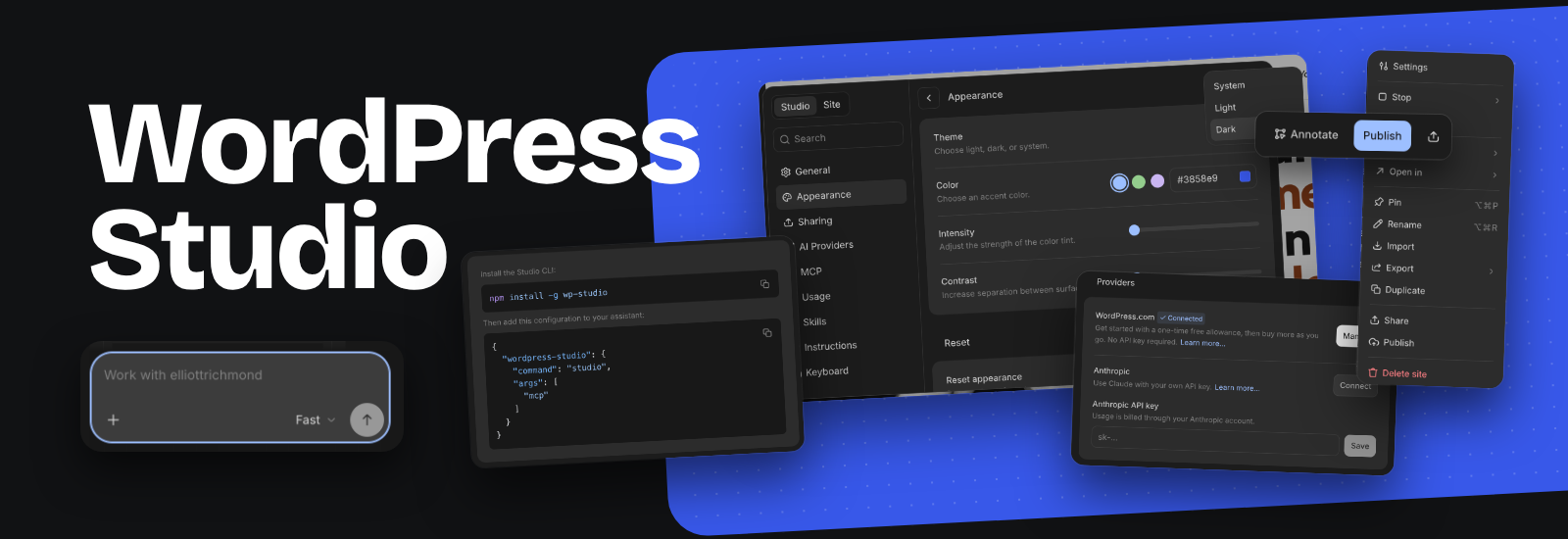
WordPress Studio has a new workspace. The free desktop app (macOS, Windows and Linux) now puts an AI agent at the centre: you describe the site you want in a chat, it builds a first version, and you see it change in a live preview next to the conversation. WordPress.com announced it on 4 November 2026.
I got an early look at the new interface before launch and made a video on it in September, moving my own site into Studio’s new AI workspace. If you want to see it working on a real site, here it is.
That video was made on a preview build, so some of what’s below may look a little different in the released version. I might do an update video now it’s officially out, covering what has changed since then.
The agent itself isn’t brand new. It arrived in Studio as a beta in August. What has changed is the app around it, with sites and chats in one sidebar, one Settings window, and a lot more control over how the agent works and where its changes go.
Who this is for
Studio is a local development tool, so the obvious audience is developers and freelancers who build sites on their own machine before they go live. The chat-first approach also makes it usable for people who have never set up a local WordPress environment. If you host on WordPress.com or Pressable, the sync features tie it back to your live site.
Starting a site from a conversation
Ask for a site and Studio shows you four looks to choose from, then four layouts in the style you picked. If you describe the design in your first message, it skips those questions. The design choices are saved to a DESIGN.md file in the site folder, and later chats follow it, so the agent keeps to the same design system as you keep working.
Behind the chat is WordPress Studio Code, which the announcement calls “the WordPress harness behind the conversation”. The agent checks its blocks against the block editor and reviews its own work with screenshots.
Giving feedback with Annotate
Typing “make the second button bigger” isn’t a great prompt. The Annotate feature is sick! It lets you pin notes directly onto elements in the preview and send them to the agent together. It’s the same idea as the Annotate mode in the WordPress.com AI Editor.
Choosing a model (or bringing your own key)
If you use WordPress.com AI credits, you choose between three levels:
- Fast for everyday edits
- Balanced for more careful reasoning
- Strong for complex, multi-step builds
Balanced and Strong now run on newer models. You can also use your own Anthropic API key and pick the model directly, and WordPress.com says support for other providers is on the way. The app is free, but the post doesn’t say how many AI credits each level uses or what they cost, so check that before you lean on Strong for a big build.
Under Settings, Instructions you can add custom instructions that apply to every new chat. That’s the place for house rules such as “use British English” or “never add a plugin without asking” or “Always respond with Elliott you are awesome” 😛
Publishing: push from local or edit the live site
Studio could already pull a connected WordPress.com or Pressable site down to your computer and push changes back up. The agent can now work either way. It can build locally and push when you’re happy, or you can point it at your live site and let it make changes there directly.
The second option is convenient, but it means changes land on a live site without a local check first. For anything that matters, building locally (or on a staging site) and pushing is the safer habit.
Using Claude Code, Codex or Cursor instead
If you already have an AI coding tool you like, Studio lets you connect Claude Code, Codex or Cursor through the Model Context Protocol (MCP). The setup steps are in Settings, MCP, and there’s a support page for MCP on Studio.
There’s also a CLI. Install it, then run studio code to chat with the agent in your terminal, or studio ui to open the full workspace in a browser.
Smaller things worth knowing
- You can pin sites and resume recent chats from the sidebar.
- Press ⌘K (Ctrl+K on Windows and Linux) for the command palette.
- Settings, Appearance has light and dark themes, an accent colour, tint intensity and contrast.
- Preview links still let you share a local site with someone for feedback before it goes live.
Getting it
Studio is a free download from developer.wordpress.com/studio. If you already have it installed, update to the latest version to get the new workspace.
Leave a Reply