
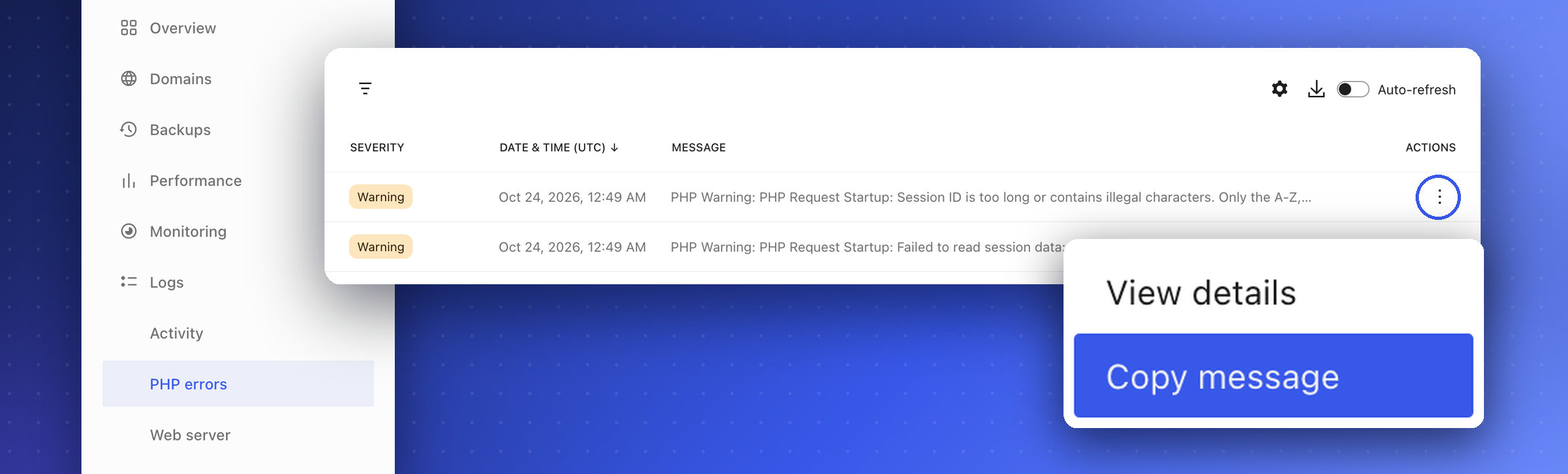
Personal and Premium sites on WordPress.com can now see their own PHP error logs and web server logs. That came in with the changelog published on 2 October 2026, and before it you needed a higher plan to get at them.
When something breaks on a WordPress site, the first thing any developer asks is “what does the error log say?” Now you can answer that yourself on the lower plans, which makes fixing things (or getting help fixing them) a lot quicker.
What’s included
The PHP error log records fatal errors, warnings and notices from PHP, the language WordPress is written in. This is where a broken plugin or a dodgy code snippet usually shows itself. The web server log records the requests hitting your site along with their status codes, which is useful for spotting 404s (page not found), 500s (the server fell over) and any odd traffic.
Business and Commerce plans get more detailed logs on top, covering monitoring, performance and deployments.
Where to find them
Open the Hosting Dashboard on WordPress.com, select your site and click Logs. From there you can switch between the PHP and web server views.
Tracking down a problem
Say a page suddenly shows a critical error, or part of your site stops working after an update. Don’t panic, and don’t start deactivating things at random. Work through it calmly.
Start by loading the broken page again so a fresh error gets written to the log. Then open the PHP log and look for the newest fatal error. The file path usually gives the game away, because it tells you which plugin or theme the error came from. A path containing wp-content/plugins/plugin-name/ is pointing straight at the culprit.
Check the timestamp lines up with when you loaded the page, so you’re not chasing an error from last Tuesday. Once you’re sure, roll back or deactivate whatever the error names and reload the page to confirm it’s fixed.
The web server log is handy for the bigger picture. A run of 500 errors on one URL usually points to the same problem, and lots of 404s may mean a broken link or a missing file.
If you can’t make sense of what you’re looking at, copy the error into a support chat. A precise error message gets you a much faster answer than “my site’s broken”, and the person on the other end will thank you for it.
Why this matters
Having the logs on the lower paid plans means site owners can diagnose problems themselves instead of guessing, upgrading or waiting in a support queue. It’s a small change, but it’s the sort of hosting feature that makes WordPress.com feel like proper managed hosting at every level.
(Plugin support varies by WordPress.com plan, so on Personal and Premium the most likely culprit may be a theme or a code snippet rather than a plugin. Check the current plan features.)
Leave a Reply