
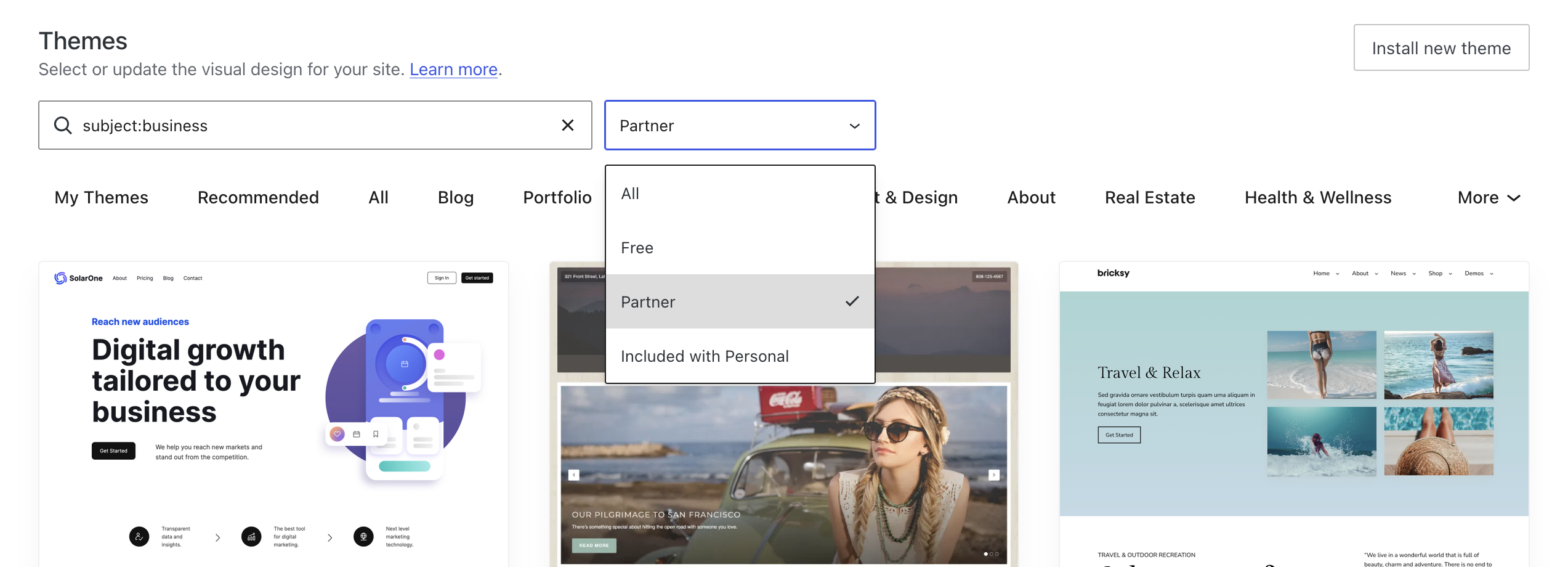
If someone told you that you need the WordPress.com Premium plan to use a premium theme, they were right until a couple of weeks ago. The WordPress.com changelog from 16 October 2026 says premium themes are now included on every paid plan, starting at Personal. You can also upload your own theme on any paid plan.
That’s a big change for the cheapest paid plan, and it rewrites the answer to the question I get asked more than any other about WordPress.com: which plan do I actually need?
What’s changed
Premium themes used to sit behind the Premium plan and above. On Personal you had the free themes and that was your lot. According to the changelog, Personal now gets the premium ones too.
The second part is custom themes. If nothing in the directory takes your fancy, you can upload your own on any paid plan. Theme uploads were historically tied to the higher plans, so this opens things up for anyone who has bought a theme elsewhere or built their own block theme (a theme made entirely of blocks, so you edit every part of it visually in the Site Editor).
(Unverified: the changelog doesn’t give an effective date or say whether custom theme uploads on the lower plans come with any limits. Check the plans page and the support docs before you rely on this.)
Who this matters to
New site owners on a budget are the obvious winners. If the main reason you were going to upgrade was a nicer looking theme, Personal may now be all you need.
If you’re already on Personal, go and have a look. You might have premium themes waiting for you right now without paying a penny more.
Developers and freelancers who build block themes for clients should take note as well. A client on a paid plan may now be able to run your theme without being pushed into a bigger upgrade, which makes that conversation a lot easier.
Switching to a premium theme on Personal
Log in to WordPress.com, open your site and head to Appearance, Themes. Browse or filter for the premium themes, which on a Personal plan should no longer throw an upgrade prompt at you. Preview the one you like with your own content, activate it, then open Appearance, Editor to adjust the styles, colours and templates.
Before you switch on a live site, check how your existing pages and menus come through. Themes handle headers, footers and templates differently, and five minutes of checking saves a red face later.
Uploading your own theme
On the Themes screen there’s an option to upload a theme as a zip file. If you’ve bought a block theme from a third party or built one in WordPress Studio, this is where it goes. Stick to sources you trust, keep a copy of the original zip and make sure the theme is still maintained. A theme that hasn’t been touched in three years is a false economy, however pretty the demo looks.
So which plan do you need now?
For a lot of blogs, portfolios and small business sites the answer just got simpler. If design was the sticking point, start on Personal and look at the premium themes. Move up when you need something the higher plans still add, such as plugins or the more advanced hosting features. Do check the current plans page for the full comparison, because these details change more often than you’d think.
Leave a Reply